Connect a source, generate its search config, and serve it to your audience
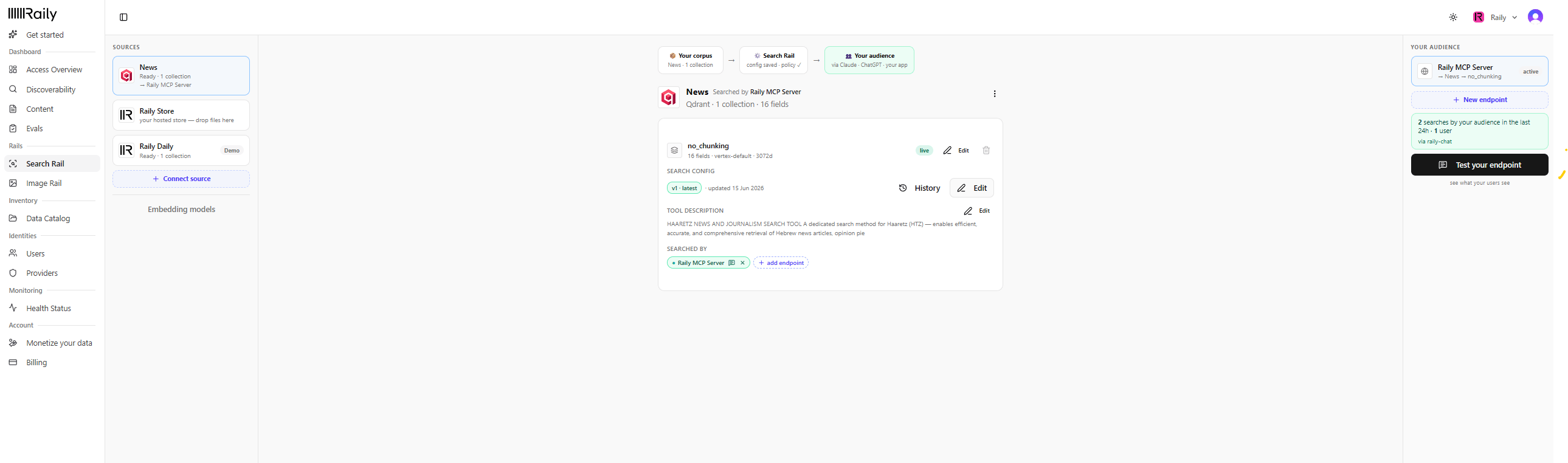
Raily Search Rail turns a data source into a search endpoint that your audience’s AI agents can call from Claude, ChatGPT, or your own app. The whole flow runs across the top of Search Rail, in three stages: Your corpus → Search Rail → Your audience. Here it is end to end.
1
Connect your source
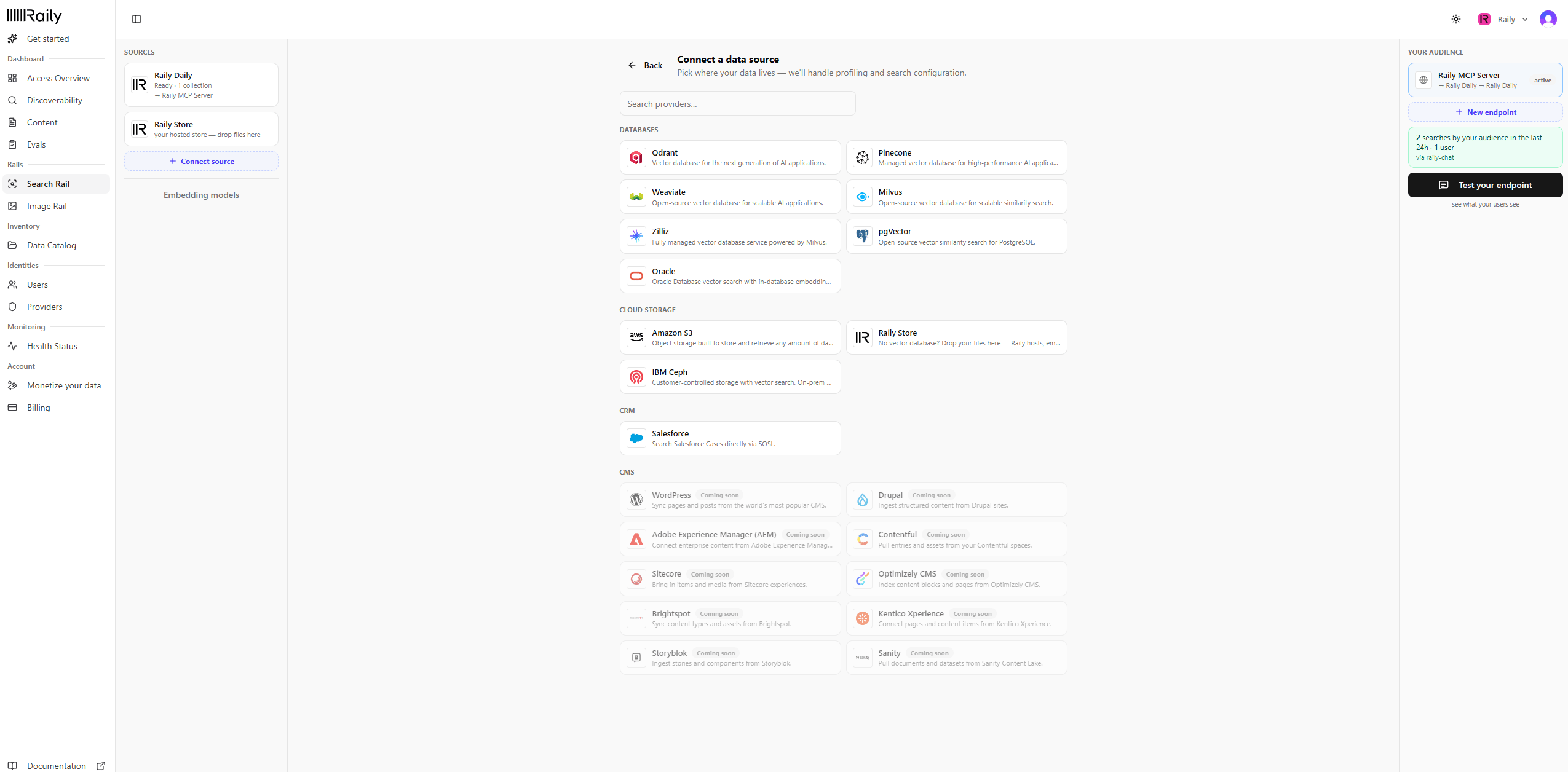
In the sidebar, open Search Rail (under Rails), then click Connect source. Pick where your data lives. Raily connects to vector stores (Qdrant, Pinecone, Weaviate, Milvus, pgvector, Oracle), cloud storage, and CRMs like Salesforce.See Connect a vector store for the per-provider details.
Pick where your data lives
2
Pick collections and an embedding model
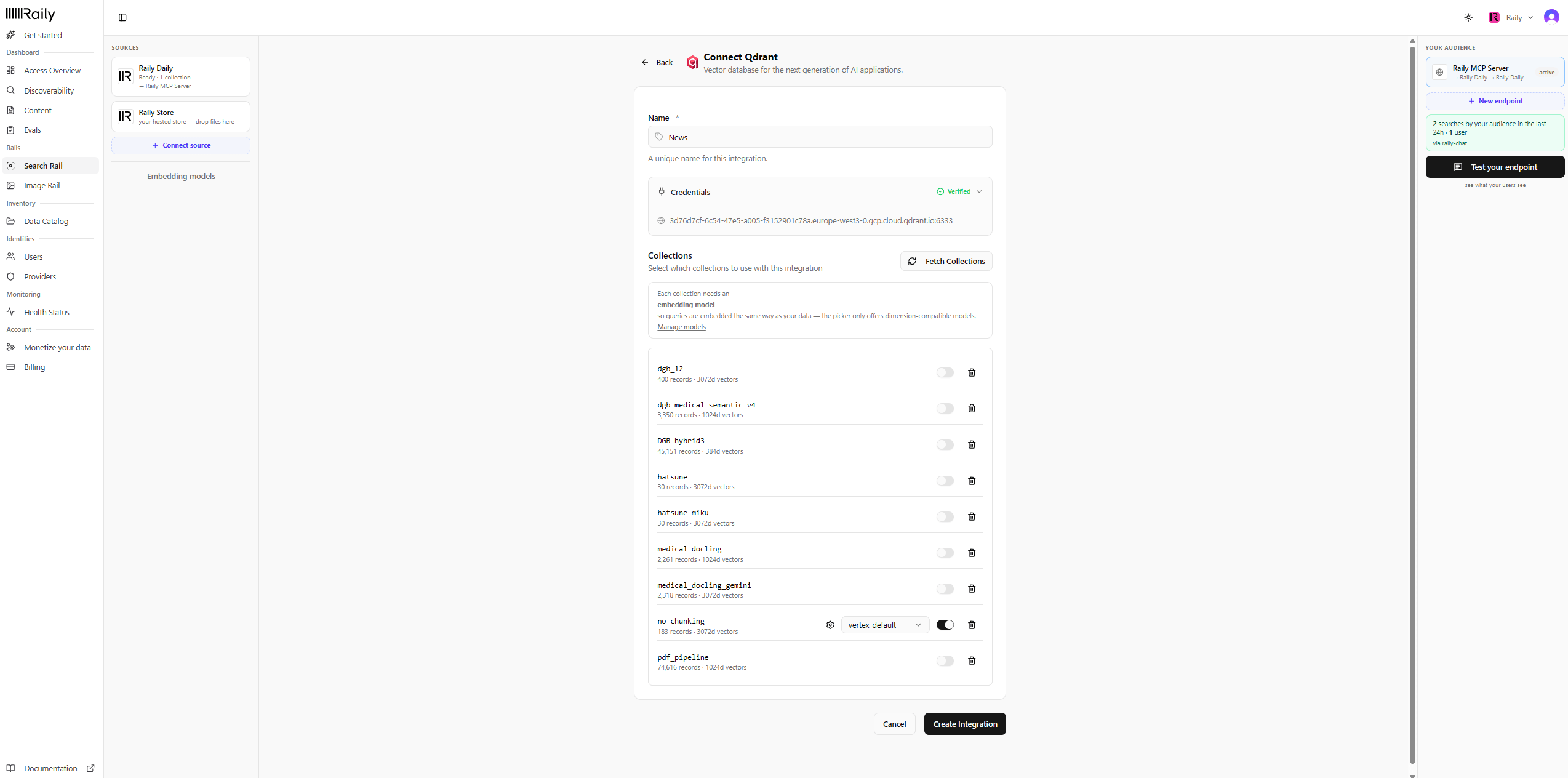
Name the source and confirm its credentials show Verified. Click Fetch Collections, toggle on each collection you want to search, and choose an embedding model. Raily only offers models that match how your data was embedded, so queries are embedded the same way as your corpus. Click Create Integration.
Choose the collections to search
3
Let Raily build the search config
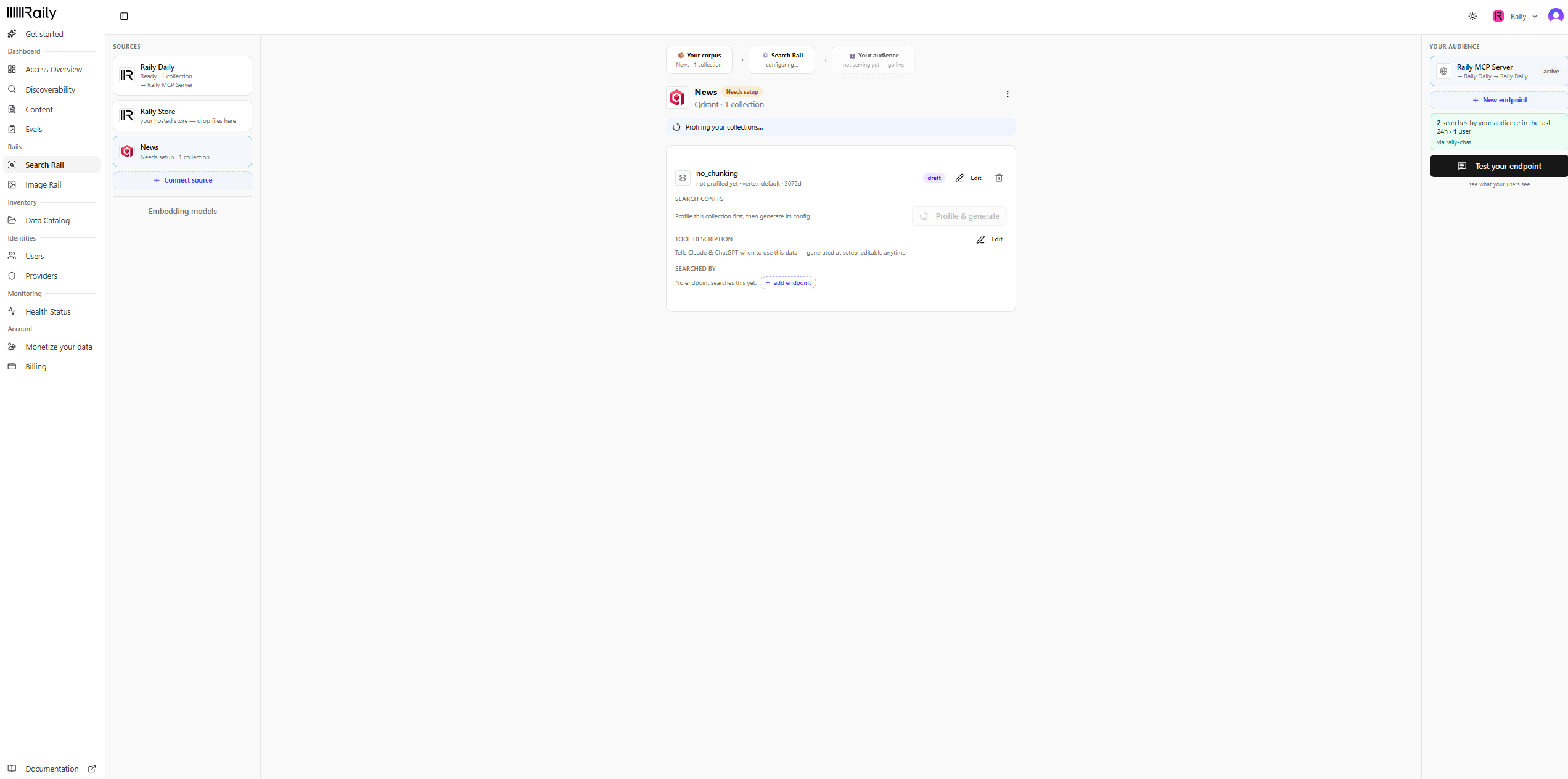
Raily profiles the collection and generates its search config for you. When it finishes, the collection shows Ready and the config is saved as v1 · latest. You can open Edit to tune it, or History to see past versions, anytime.
Raily profiles the collection and generates its config
4
Point an endpoint at it and go live
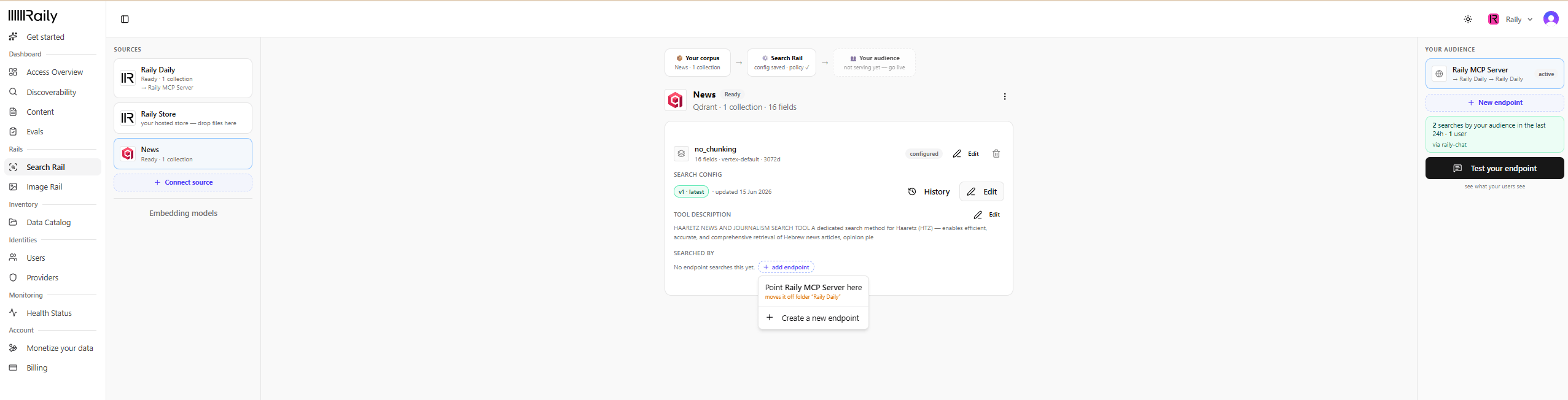
Under Searched by, click add endpoint. You have two choices:
Point an existing endpoint here (for example Point Raily MCP Server here). This moves the endpoint onto this collection.
Create a new endpoint when this collection needs its own. See AI Endpoints for details.
Either way, the collection goes live and starts serving your audience through Claude, ChatGPT, or your app.
Point an endpoint at the collection
Once it’s wired, the collection reads live and shows the endpoint that searches it.
The collection is live and serving your audience
See AI Endpoints for more on endpoints and who can reach them.
5
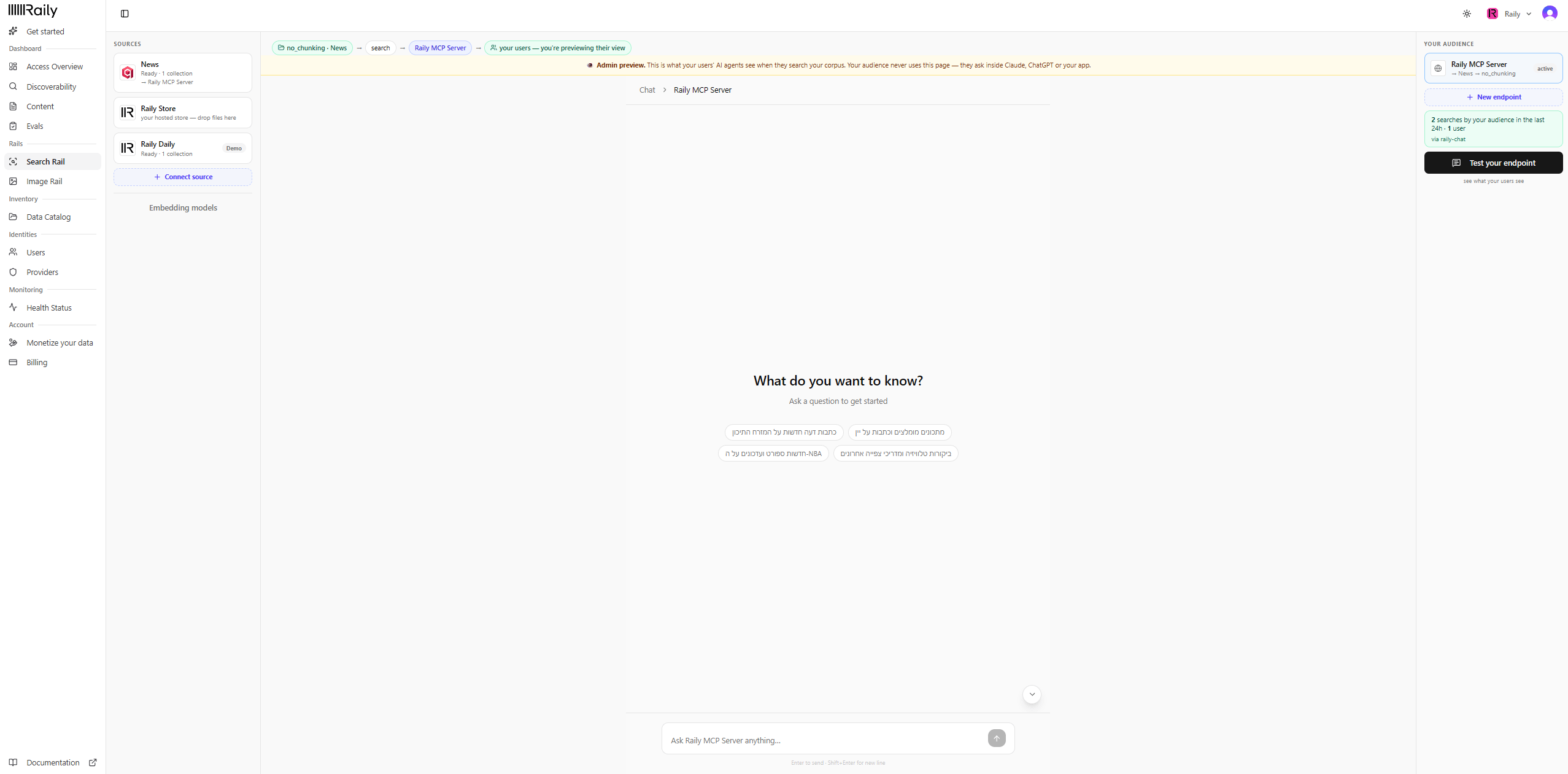
Test your endpoint
Click Test your endpoint to preview exactly what your audience’s agents see. Ask a question in plain language. Raily searches your collection and answers with links back to the source. This page is an admin preview. Your audience never sees it. They ask from inside Claude, ChatGPT, or your app.