Connect a vector database to Raily so your collections become searchable
Connect a vector database (Qdrant, Pinecone, and others) to Raily. Once connected, Raily can search its collections with access control and usage tracking on top.The steps are similar for every provider. Pick your provider in the tabs below for its connection fields and steps.
In the sidebar, open Search Rail (under Rails) and click Connect source.
Pick where your data lives
Then pick your provider and follow its steps.
Qdrant
Pinecone
Zilliz
Milvus
Weaviate
pgvector
Oracle
IBM Ceph
Salesforce
Raily Vector Store
1
Open Qdrant
Click the Qdrant card.
2
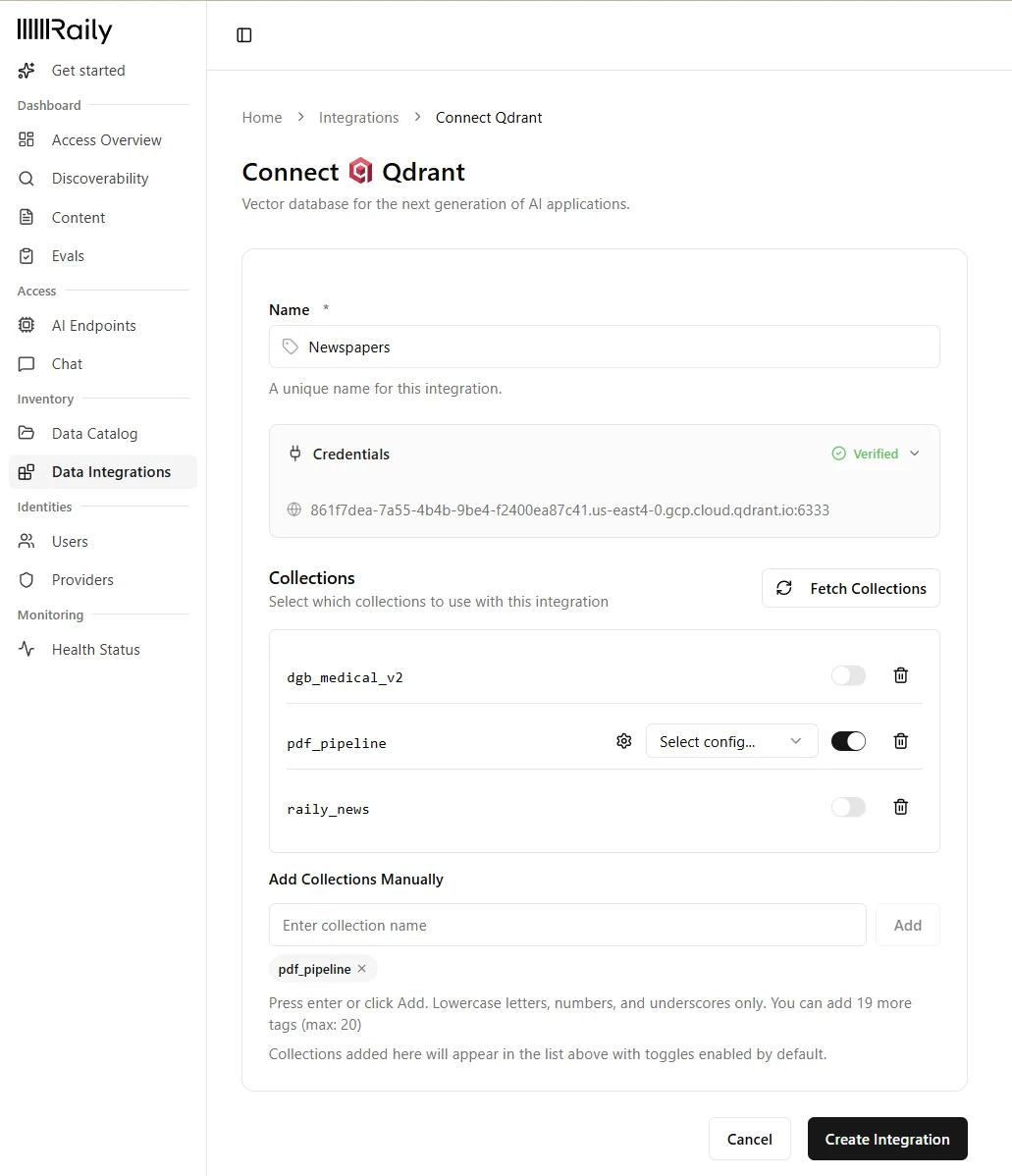
Enter the connection details
Name for the integration.
Qdrant URL, for example your-project.europe-west3-0.gcp.cloud.qdrant.io:6333.
API Key. Required for Qdrant Cloud, optional for local Qdrant.
Qdrant connection form
3
Add collections
Click Fetch Collections and enable the ones you want, or add a collection by name (lowercase letters, numbers, and underscores).
4
Set an embedding config
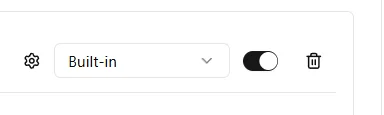
Pick an embedding config for each collection. It must match the model that created the vectors.Don’t have one yet? Open the embedding config picker and click Create New.
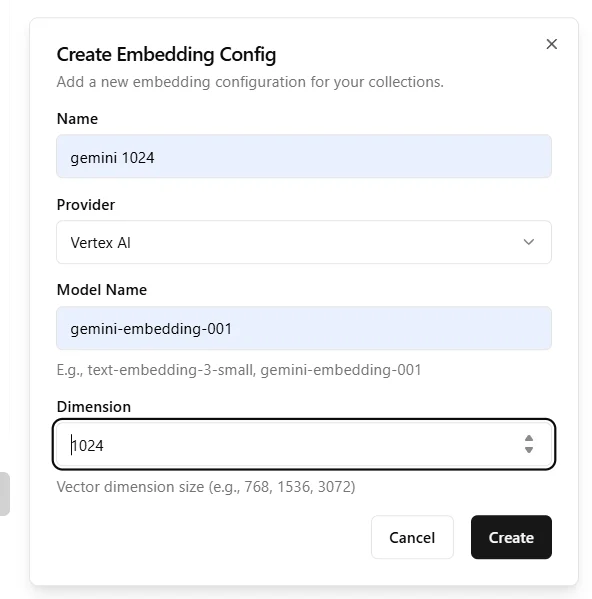
Create a new embedding config
Enter a Name, pick a Provider, and set the Model Name and Dimension to match the model that created your vectors. Add an API Key if the provider needs one, then save.
Embedding config form
5
Save
Click Create Integration. Raily then configures agentic search for each collection automatically. This can take a few minutes, after which the integration appears under My Integrations with an Active status.
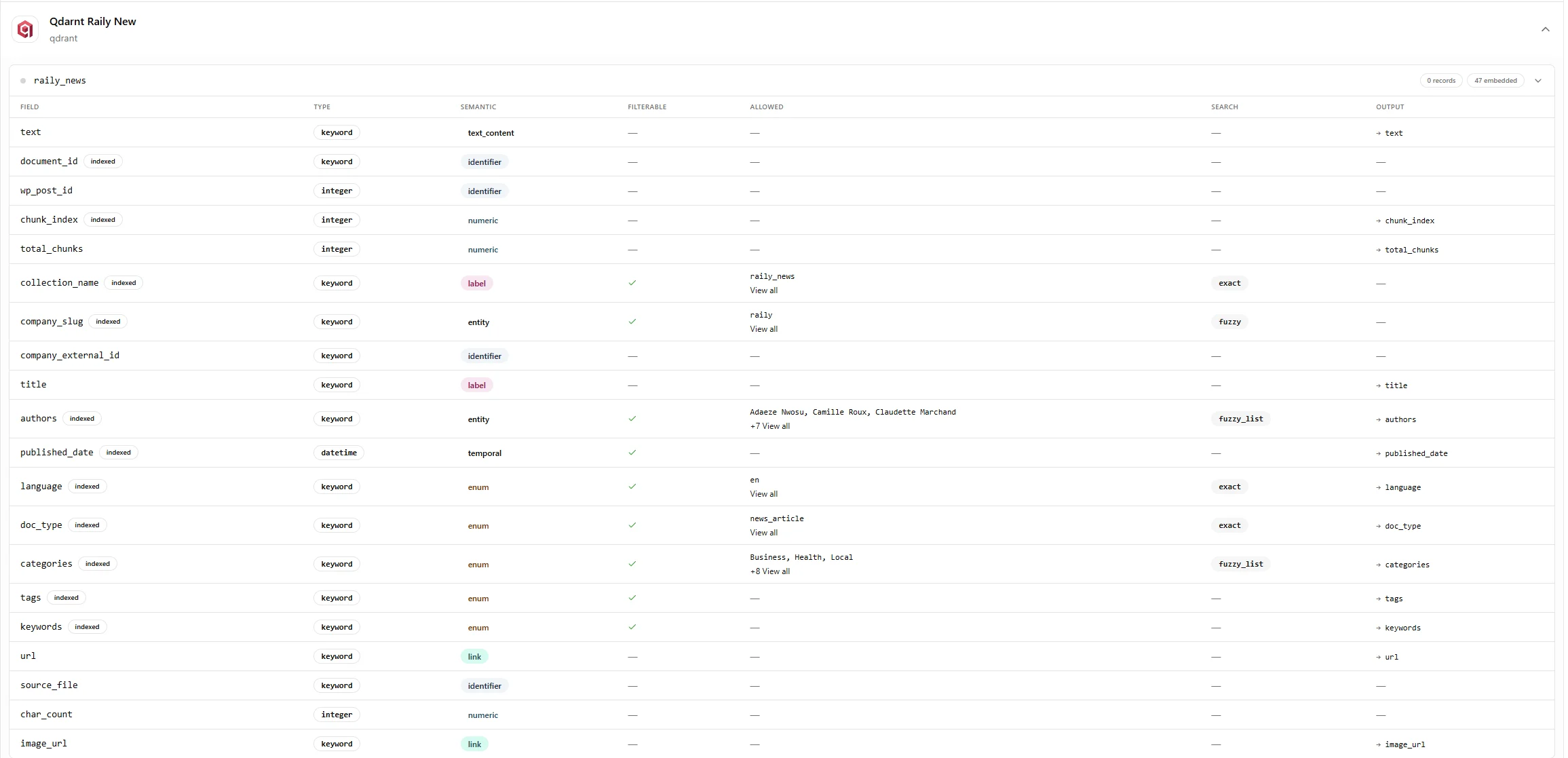
Once it finishes, open Inventory → Data Catalog to see the generated configuration for each collection.
6
See it in the Data Catalog
After generation finishes, Raily opens the collection in Data Catalog.
Collection configuration in the Data Catalog
1
Open Pinecone
Click the Pinecone card.
2
Enter the connection details
Name for the integration.
API Key from your Pinecone console.
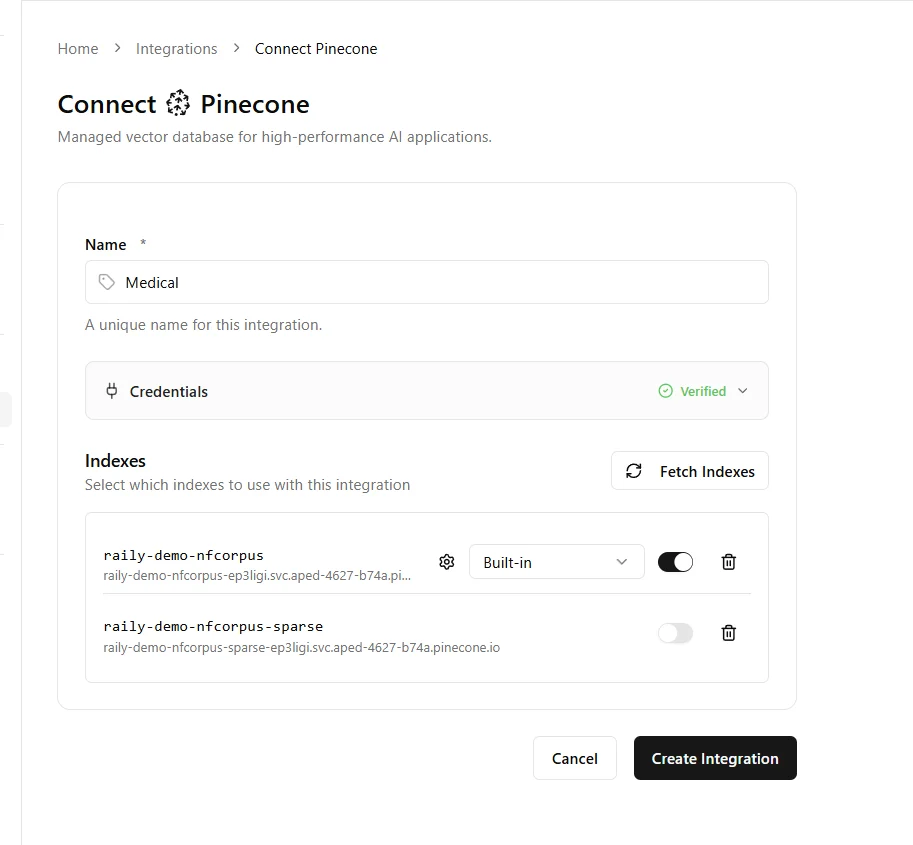
Pinecone connection form
3
Add indexes
Click Fetch Indexes and enable the ones you want. Each enabled index needs its Index Host URL, which Raily fills in from Pinecone.
4
Set an embedding config
Pick an embedding config for each index. It must match the model that created the vectors. If embeddings are server-generated, set the config to built-in.Don’t have one yet? Open the embedding config picker and click Create New.
Create a new embedding config
Enter a Name, pick a Provider, and set the Model Name and Dimension to match the model that created your vectors. Add an API Key if the provider needs one, then save.
Embedding config form
5
Save
Click Create Integration. Raily then configures agentic search for each collection automatically. This can take a few minutes, after which the integration appears under My Integrations with an Active status.
Once it finishes, open Inventory → Data Catalog to see the generated configuration for each collection.
6
See it in the Data Catalog
After generation finishes, Raily opens the collection in Data Catalog.
Collection configuration in the Data Catalog
1
Open Zilliz
Click the Zilliz card.
2
Enter the connection details
Name for the integration.
Cluster endpoint URL, for example your-cluster.serverless.gcp-us-west1.cloud.zilliz.com.
API Key for your Zilliz Cloud cluster.
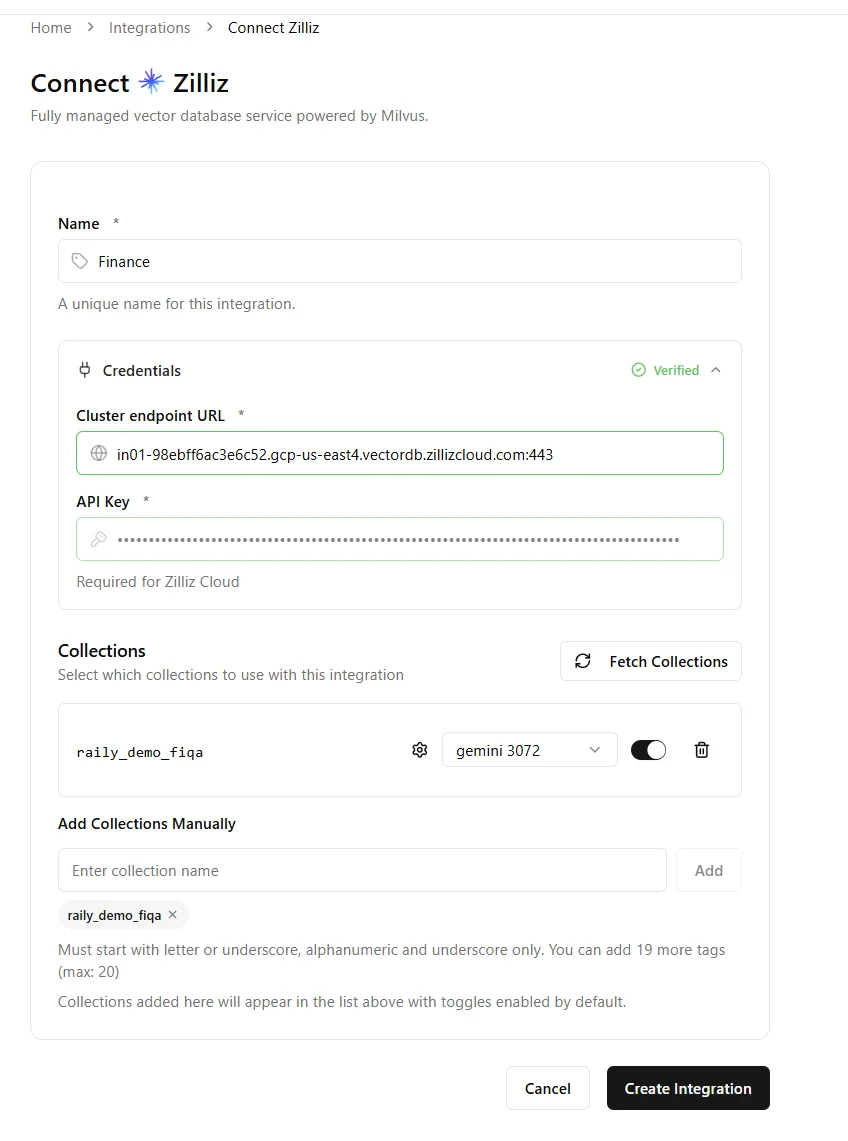
Zilliz connection form
3
Add collections
Click Fetch Collections and enable the ones you want, or add a collection by name (start with a letter or underscore; letters, numbers, and underscores).
4
Set an embedding config
Pick an embedding config for each collection. It must match the model that created the vectors.Don’t have one yet? Open the embedding config picker and click Create New.
Create a new embedding config
Enter a Name, pick a Provider, and set the Model Name and Dimension to match the model that created your vectors. Add an API Key if the provider needs one, then save.
Embedding config form
5
Save
Click Create Integration. Raily then configures agentic search for each collection automatically. This can take a few minutes, after which the integration appears under My Integrations with an Active status.
Once it finishes, open Inventory → Data Catalog to see the generated configuration for each collection.
6
See it in the Data Catalog
After generation finishes, Raily opens the collection in Data Catalog.
Collection configuration in the Data Catalog
1
Open Milvus
Click the Milvus card.
2
Enter the connection details
Name for the integration.
Cluster endpoint URL, for example milvus.your-company.com.
API Key. Optional for self-hosted Milvus.
Milvus connection form
3
Add collections
Click Fetch Collections and enable the ones you want, or add a collection by name (start with a letter or underscore; letters, numbers, and underscores).
4
Set an embedding config
Pick an embedding config for each collection. It must match the model that created the vectors.Don’t have one yet? Open the embedding config picker and click Create New.
Create a new embedding config
Enter a Name, pick a Provider, and set the Model Name and Dimension to match the model that created your vectors. Add an API Key if the provider needs one, then save.
Embedding config form
5
Save
Click Create Integration. Raily then configures agentic search for each collection automatically. This can take a few minutes, after which the integration appears under My Integrations with an Active status.
Once it finishes, open Inventory → Data Catalog to see the generated configuration for each collection.
1
Open Weaviate
Click the Weaviate card.
2
Enter the connection details
Name for the integration.
Weaviate URL, for example your-cluster.c0.europe-west3.gcp.weaviate.cloud.
API Key. Required for Weaviate Cloud, optional if your instance has no authentication.
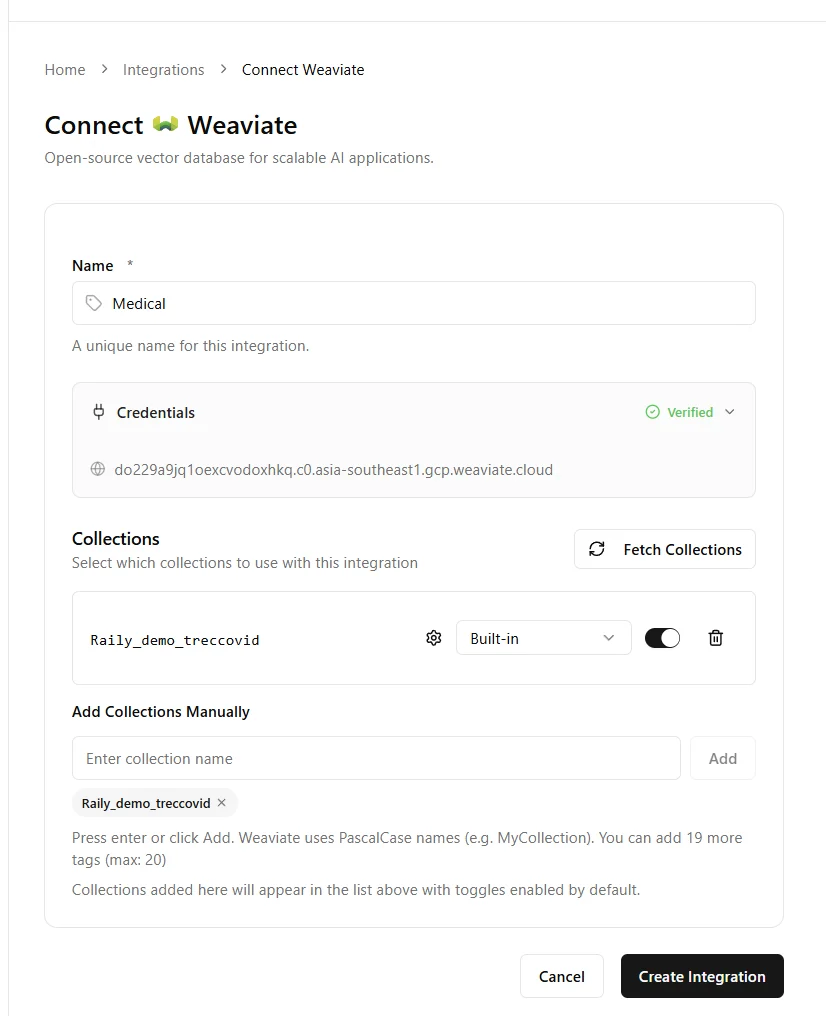
Weaviate connection form
3
Add collections
Click Fetch Collections and enable the ones you want, or add a collection by name. Weaviate uses PascalCase names, for example MyCollection.
4
Set an embedding config
Pick an embedding config for each collection. It must match the model that created the vectors. If embeddings are server-generated, set the config to built-in.Don’t have one yet? Open the embedding config picker and click Create New.
Create a new embedding config
Enter a Name, pick a Provider, and set the Model Name and Dimension to match the model that created your vectors. Add an API Key if the provider needs one, then save.
Embedding config form
5
Save
Click Create Integration. Raily then configures agentic search for each collection automatically. This can take a few minutes, after which the integration appears under My Integrations with an Active status.
Once it finishes, open Inventory → Data Catalog to see the generated configuration for each collection.
6
See it in the Data Catalog
After generation finishes, Raily opens the collection in Data Catalog.
Collection configuration in the Data Catalog
1
Open pgvector
Click the pgVector card.
2
Enter the connection details
Name for the integration.
Connection String, for example postgresql://user@host:5432/dbname.
Password. Optional if the password is already in the connection string.
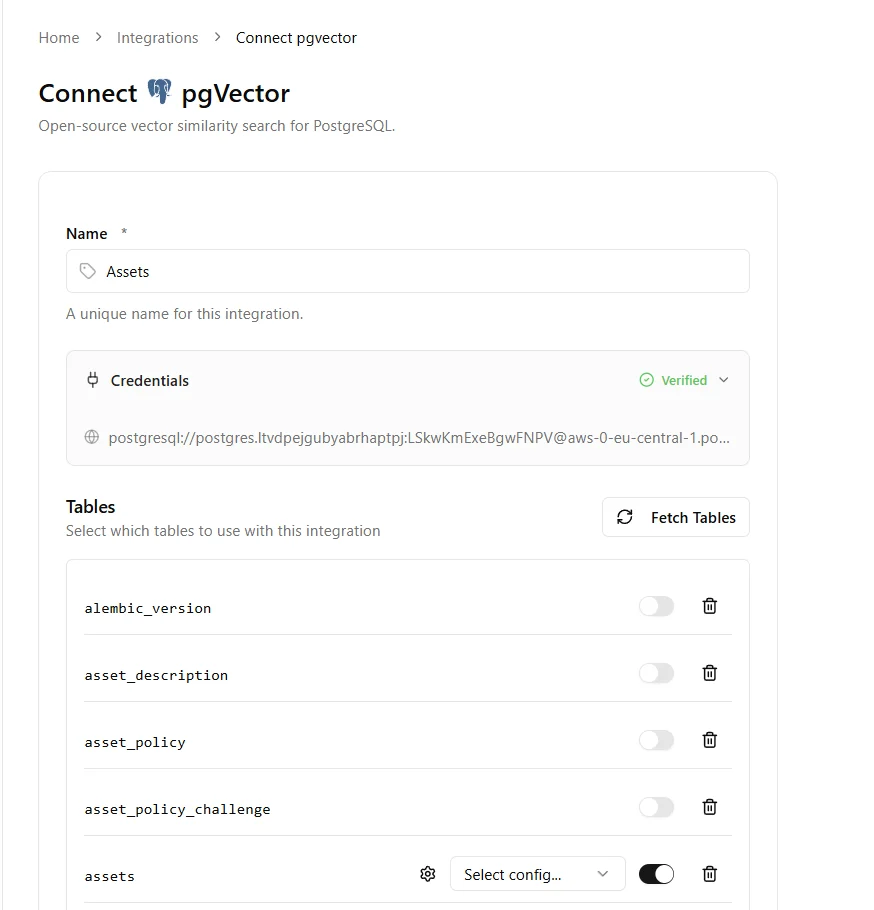
pgvector connection form
3
Confirm the connection
Raily checks the credentials automatically. The Credentials section shows Verified when they work, or Failed if not.
4
Add tables
Click Fetch Tables and enable the ones you want, or add a table by name. Schema-qualified names are supported, for example public.documents.
5
Set an embedding config
Pick an embedding config for each table. It must match the model that created the vectors.Don’t have one yet? Open the embedding config picker and click Create New.
Create a new embedding config
Enter a Name, pick a Provider, and set the Model Name and Dimension to match the model that created your vectors. Add an API Key if the provider needs one, then save.
Embedding config form
6
Save
Click Create Integration. Raily then configures agentic search for each collection automatically. This can take a few minutes, after which the integration appears under My Integrations with an Active status.
Once it finishes, open Inventory → Data Catalog to see the generated configuration for each collection.
1
Open Oracle
Click the Oracle card.
2
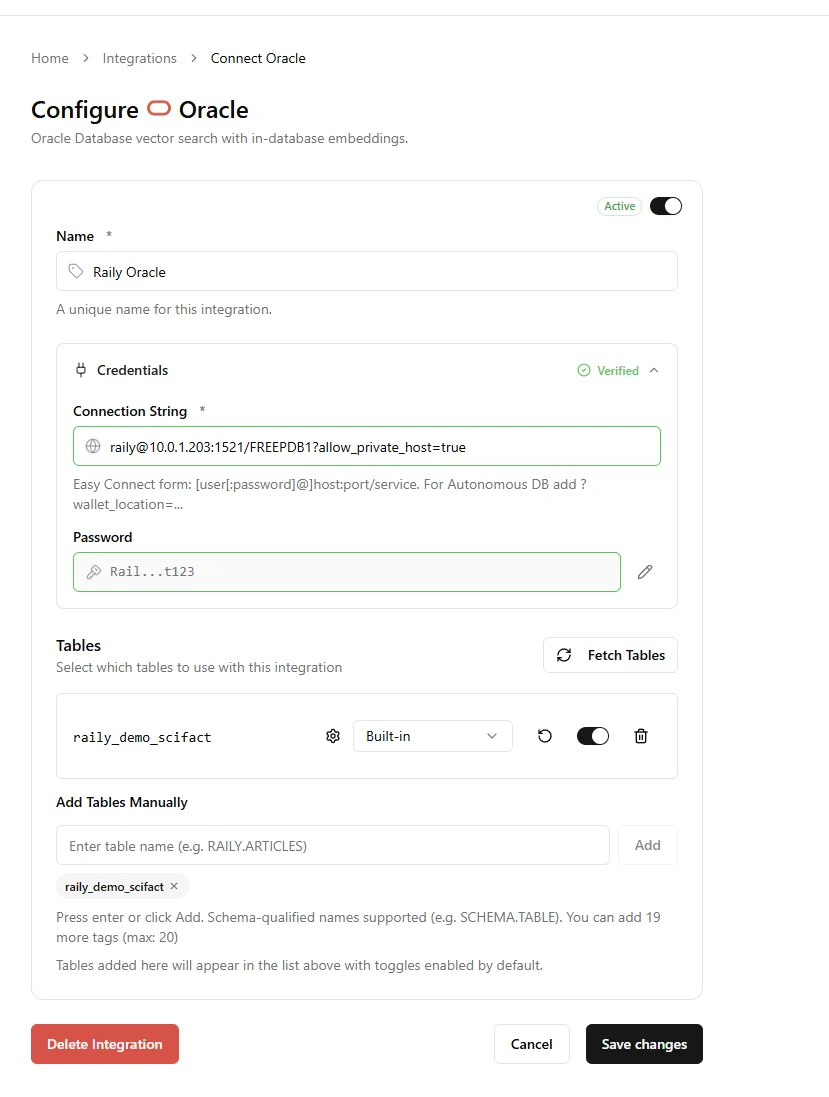
Enter the connection details
Name for the integration.
Connection String in Easy Connect form, for example user@host:1521/FREEPDB1. For Autonomous Database, add ?wallet_location=....
Password. Optional if the password is already in the connection string.
Oracle connection form
3
Confirm the connection
Raily checks the credentials automatically. The Credentials section shows Verified when they work, or Failed if not.
4
Add tables
Click Fetch Tables and enable the ones you want, or add a table by name. Schema-qualified names are supported, for example RAILY.ARTICLES.
5
Set an embedding config
Pick an embedding config for each table. It must match the model that created the vectors. If embeddings are server-generated, set the config to built-in.Don’t have one yet? Open the embedding config picker and click Create New.
Create a new embedding config
Enter a Name, pick a Provider, and set the Model Name and Dimension to match the model that created your vectors. Add an API Key if the provider needs one, then save.
Embedding config form
6
Save
Click Create Integration. Raily then configures agentic search for each collection automatically. This can take a few minutes, after which the integration appears under My Integrations with an Active status.
Once it finishes, open Inventory → Data Catalog to see the generated configuration for each collection.
7
See it in the Data Catalog
After generation finishes, Raily opens the collection in Data Catalog.
Collection configuration in the Data Catalog
1
Open IBM Ceph
Click the IBM Ceph card.
2
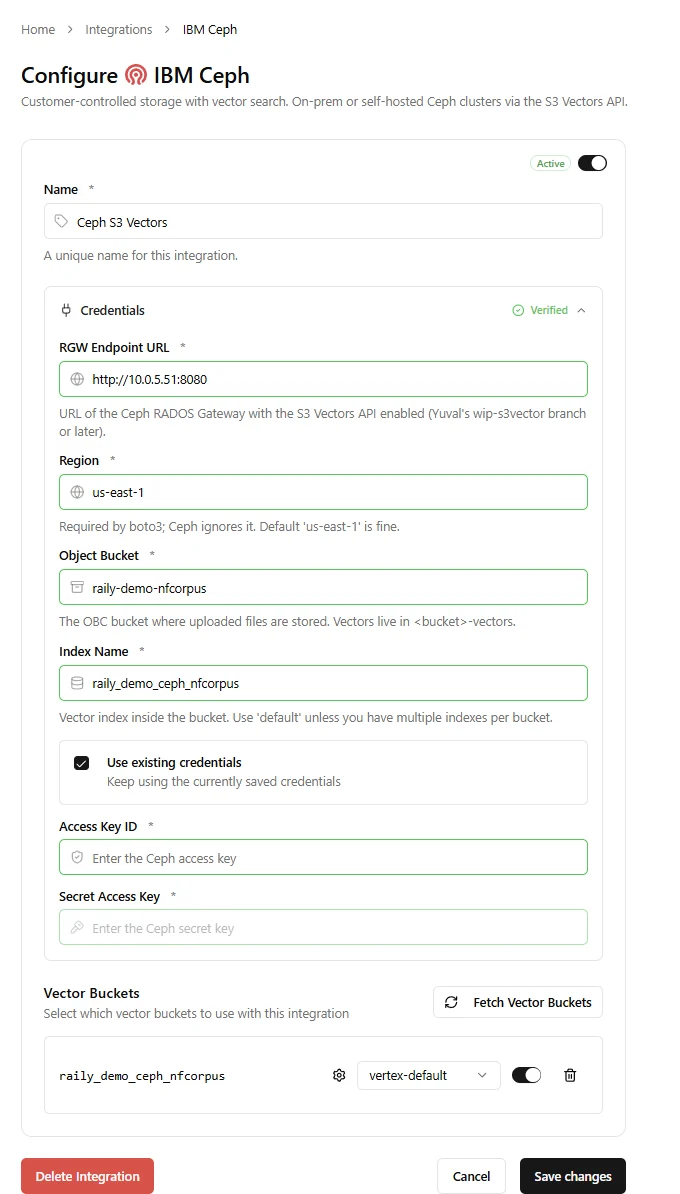
Enter the connection details
Name for the integration.
RGW Endpoint URL of the Ceph RADOS Gateway, for example https://ceph.example.com.
Region. Required by the S3 client; Ceph ignores it. us-east-1 is fine.
Object Bucket where uploaded files are stored. Vectors live in <bucket>-vectors.
Index Name. Use default unless you have multiple indexes per bucket.
Access Key ID and Secret Access Key for the Ceph cluster.
IBM Ceph connection form
3
Add vector buckets
Click Fetch Vector Buckets and enable the ones you want.
4
Set an embedding config
Pick an embedding config for each vector bucket. It must match the model that created the vectors.Don’t have one yet? Open the embedding config picker and click Create New.
Create a new embedding config
Enter a Name, pick a Provider, and set the Model Name and Dimension to match the model that created your vectors. Add an API Key if the provider needs one, then save.
Embedding config form
5
Save
Click Create Integration. Raily then configures agentic search for each collection automatically. This can take a few minutes, after which the integration appears under My Integrations with an Active status.
Once it finishes, open Inventory → Data Catalog to see the generated configuration for each collection.
6
See it in the Data Catalog
After generation finishes, Raily opens the collection in Data Catalog.
Collection configuration in the Data Catalog
1
Open Salesforce
Click the Salesforce card.
2
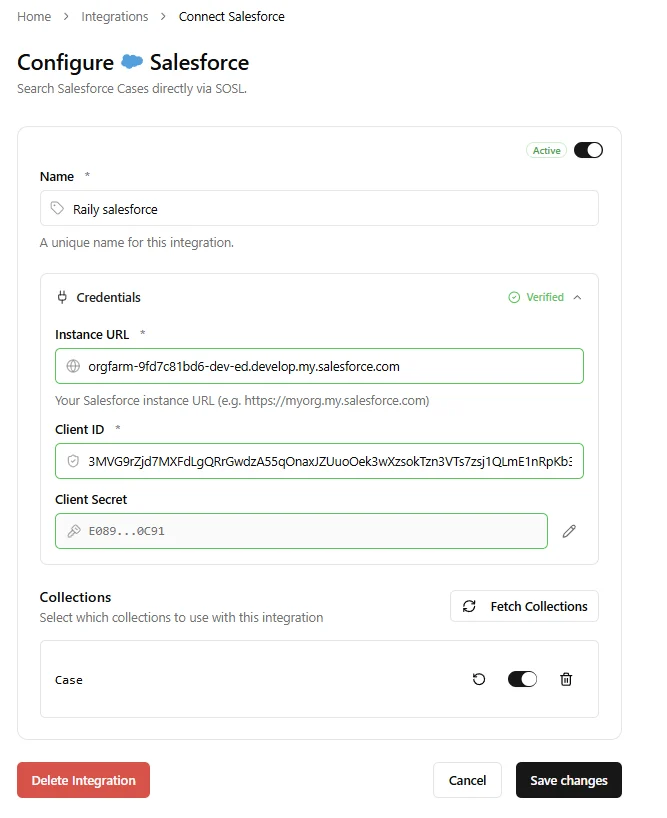
Enter the connection details
Name for the integration.
Instance URL, for example https://myorg.my.salesforce.com.
Client ID, your Connected App consumer key.
Client Secret, your Connected App consumer secret.
Salesforce connection form
3
Confirm the connection
Raily checks the credentials automatically. The Credentials section shows Verified when they work, or Failed if not.
4
Add collections
Click Fetch Collections and enable the ones you want. Salesforce search runs over Cases via SOSL, so no embedding config is needed.
5
Save
Click Create Integration. Raily then configures agentic search for each collection automatically. This can take a few minutes, after which the integration appears under My Integrations with an Active status.
Once it finishes, open Inventory → Data Catalog to see the generated configuration for each collection.
6
See it in the Data Catalog
After generation finishes, Raily opens the collection in Data Catalog.
Collection configuration in the Data Catalog
Don’t have a vector database yet? Talk to us and we can provide one for you.