> ## Documentation Index
> Fetch the complete documentation index at: https://docs.raily.ai/llms.txt
> Use this file to discover all available pages before exploring further.
# Add and manage MCP endpoint users
> Grant Raily-hosted users access to MCP endpoints, manage inherited Organization grants, and send endpoint connect links.
Use this page to grant people access through a Raily-hosted sign-in. You add each person by email and choose which endpoints they can reach.
If an endpoint uses your own identity provider, manage admission there. Raily lists people after their first successful sign-in, but it does not add another per-user grant. For scripts and backend services, create an [API key](/features/access) instead.
Endpoint users are not Raily team members. Team members sign in to the Raily app to manage sources and endpoints. Endpoint users only need access to the endpoint.
## Choose where to manage access
| Sign-in provider | Where you manage people |
| -------------------------- | ----------------------------------------------------------------------------------------------------- |
| Raily-hosted | Add people by email, choose their endpoints, change their access, or remove them in Raily. |
| Your own identity provider | Admit or remove people in your identity provider. Raily only shows people who have already signed in. |
The steps for adding, changing, and removing access below apply to Raily-hosted sign-in.
## Open the user list
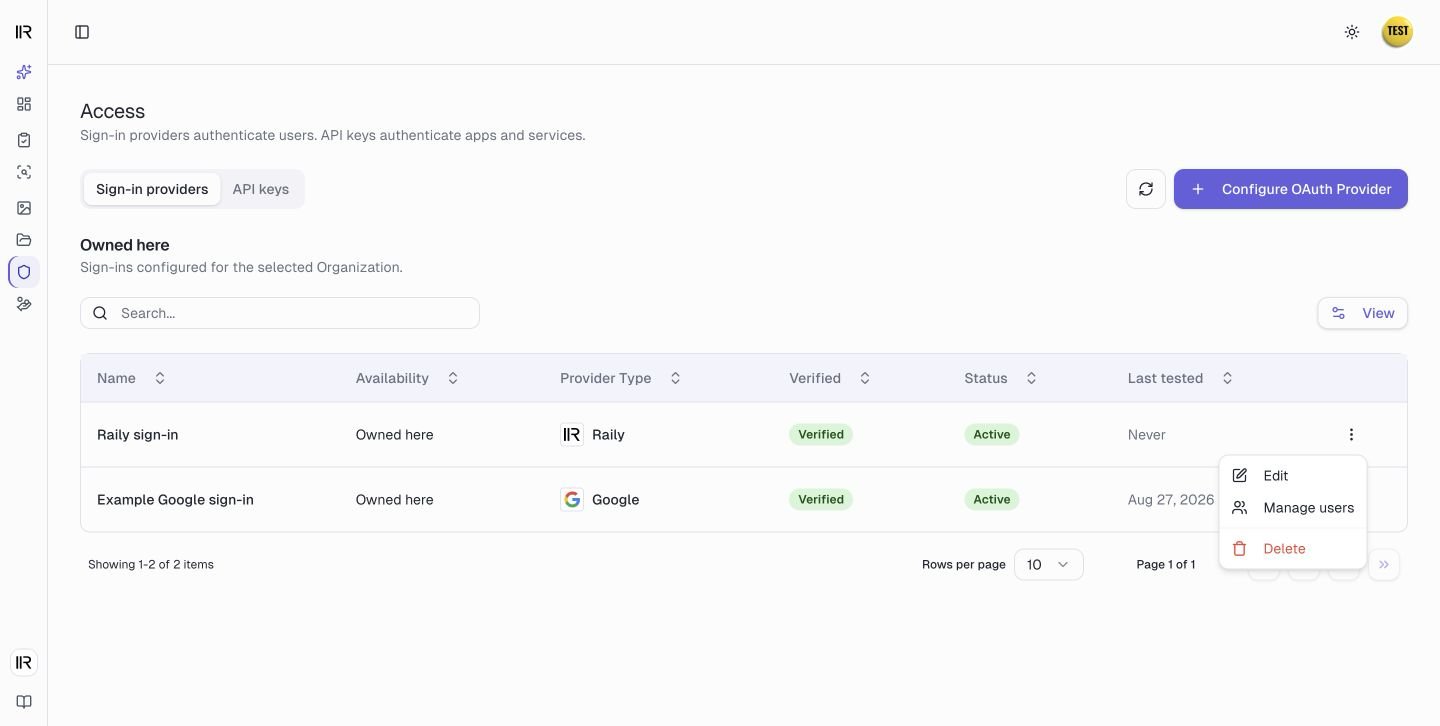
1. In the sidebar, go to **Security** and select **Access**.
2. On the **Sign-in providers** tab, find the provider the person should use.
3. Open the row menu. Select **Manage users** for Raily-hosted sign-in or **View synchronized users** for your own identity provider.
 Each sign-in provider has its own list of users. Adding someone under one provider does not give them access to endpoints that use a different provider.
## Read the user list
The three cards at the top count **Direct users** (managed in the Organization you have selected), **Effective users** (active access, direct and inherited), and **Endpoints covered**.
Each sign-in provider has its own list of users. Adding someone under one provider does not give them access to endpoints that use a different provider.
## Read the user list
The three cards at the top count **Direct users** (managed in the Organization you have selected), **Effective users** (active access, direct and inherited), and **Endpoints covered**.
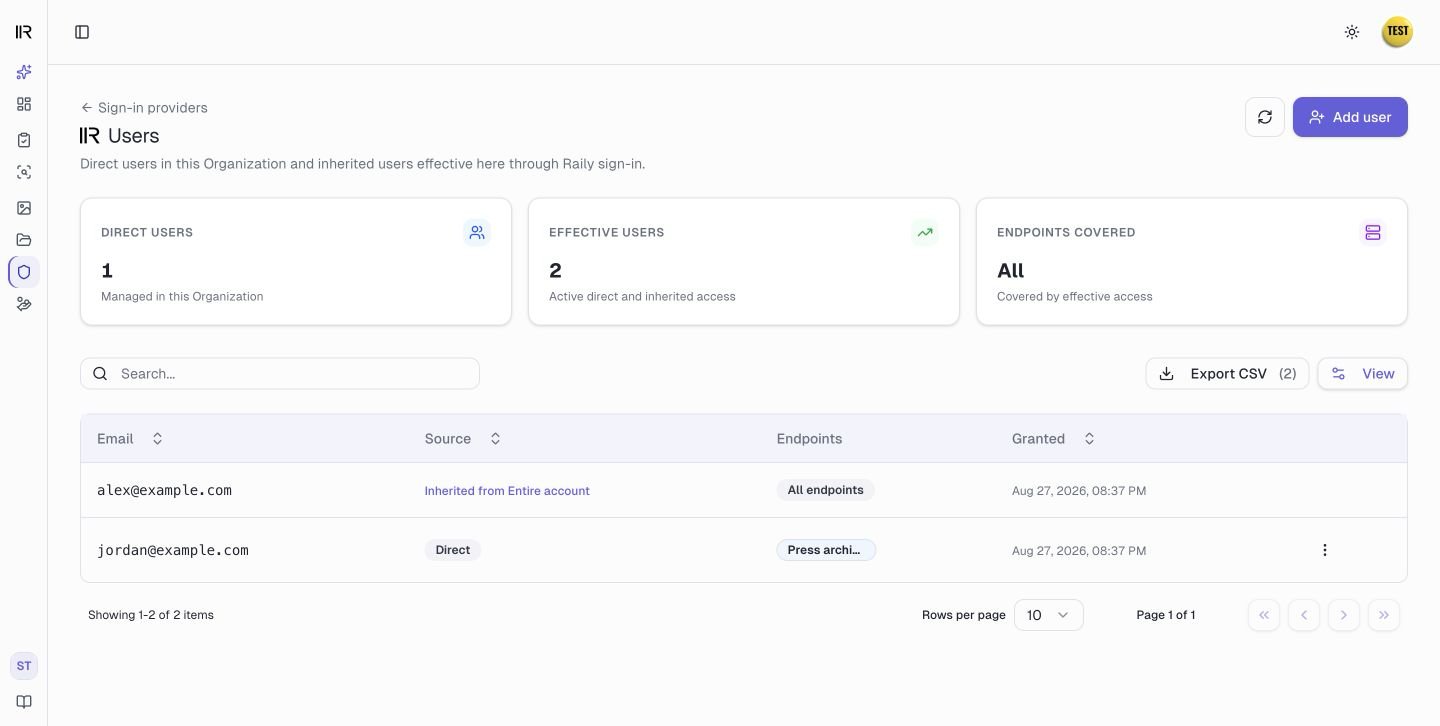
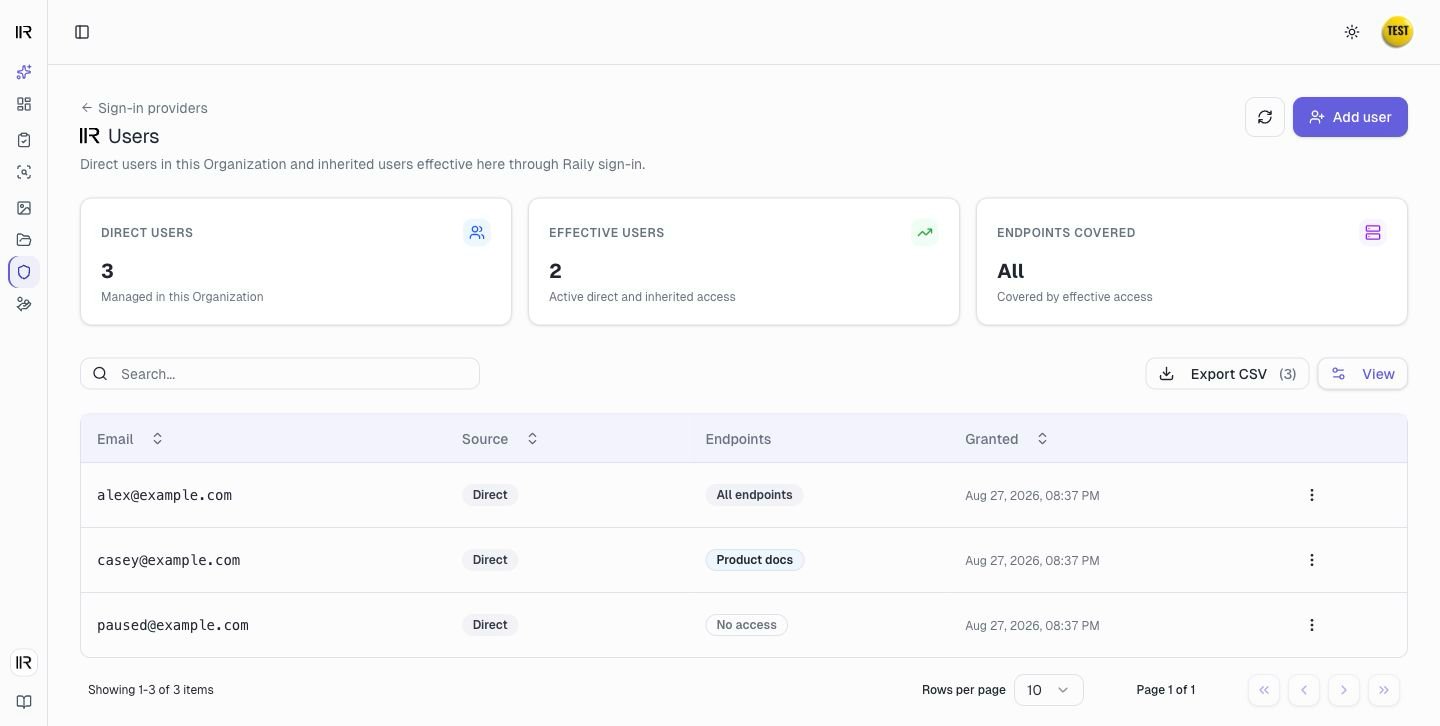 In the table, the **Source** column tells you where a person's access comes from:
* **Direct** means the access was granted in the Organization you are viewing. You can change or remove it here.
* An Organization name means the access was granted higher up and is inherited. Open that Organization to change it.
* **Synchronized here** means the person came from your own identity provider.
Only **Direct** rows have a row menu. Inherited access is managed where it was granted.
In the table, the **Source** column tells you where a person's access comes from:
* **Direct** means the access was granted in the Organization you are viewing. You can change or remove it here.
* An Organization name means the access was granted higher up and is inherited. Open that Organization to change it.
* **Synchronized here** means the person came from your own identity provider.
Only **Direct** rows have a row menu. Inherited access is managed where it was granted.
 ## Before you add a user
To add someone to a Raily-hosted sign-in, you need:
* A paid plan and permission to manage users in the selected Organization. Account Owners, Administrators, and Editors have this permission, including through an inherited role.
* A Raily-hosted sign-in.
* At least one endpoint in the selected Organization that uses that sign-in.
* The email address the person will use.
## Add a user
The **Add user** dialog takes you through **Add user**, **Review access**, and **Access granted** without opening another page.
Select **Add user** at the top right of the Users list. Enter the address the person will sign in with. If they use a different address later, they get no access.
Pick **All endpoints** to cover current and future endpoints that use this sign-in in the selected Organization and its descendants, or select named endpoints from the list.
## Before you add a user
To add someone to a Raily-hosted sign-in, you need:
* A paid plan and permission to manage users in the selected Organization. Account Owners, Administrators, and Editors have this permission, including through an inherited role.
* A Raily-hosted sign-in.
* At least one endpoint in the selected Organization that uses that sign-in.
* The email address the person will use.
## Add a user
The **Add user** dialog takes you through **Add user**, **Review access**, and **Access granted** without opening another page.
Select **Add user** at the top right of the Users list. Enter the address the person will sign in with. If they use a different address later, they get no access.
Pick **All endpoints** to cover current and future endpoints that use this sign-in in the selected Organization and its descendants, or select named endpoints from the list.
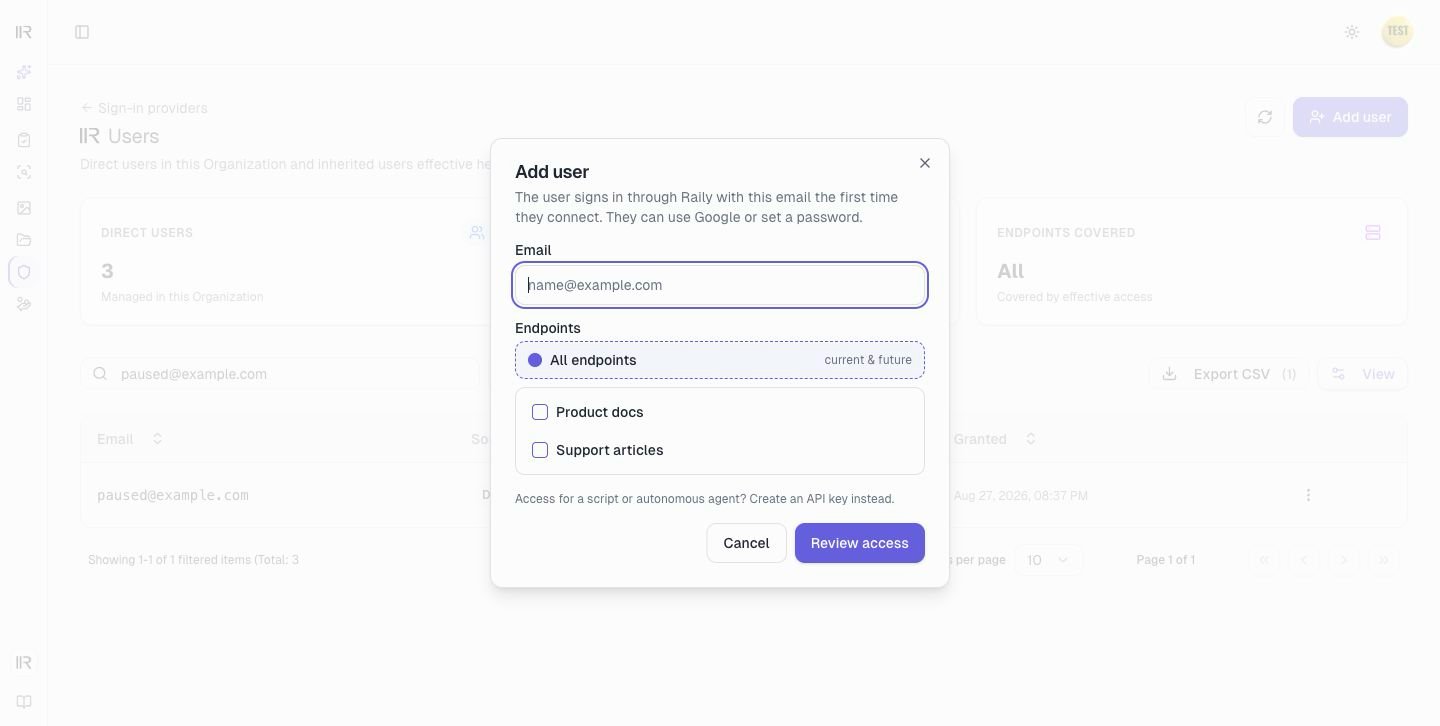 Choosing **All endpoints** also covers future matching endpoints in the selected Organization and its descendants. Each endpoint still has its own connect link.
Select **Review access**. Nothing is granted yet.
Check the **Email**, **Organization**, **Sign-in**, and **Endpoints** rows. If the person already has access through this sign-in in this Organization or one above it, the dialog marks them as an existing subscriber and says access will be added for the selected Organization.
Choosing **All endpoints** also covers future matching endpoints in the selected Organization and its descendants. Each endpoint still has its own connect link.
Select **Review access**. Nothing is granted yet.
Check the **Email**, **Organization**, **Sign-in**, and **Endpoints** rows. If the person already has access through this sign-in in this Organization or one above it, the dialog marks them as an existing subscriber and says access will be added for the selected Organization.
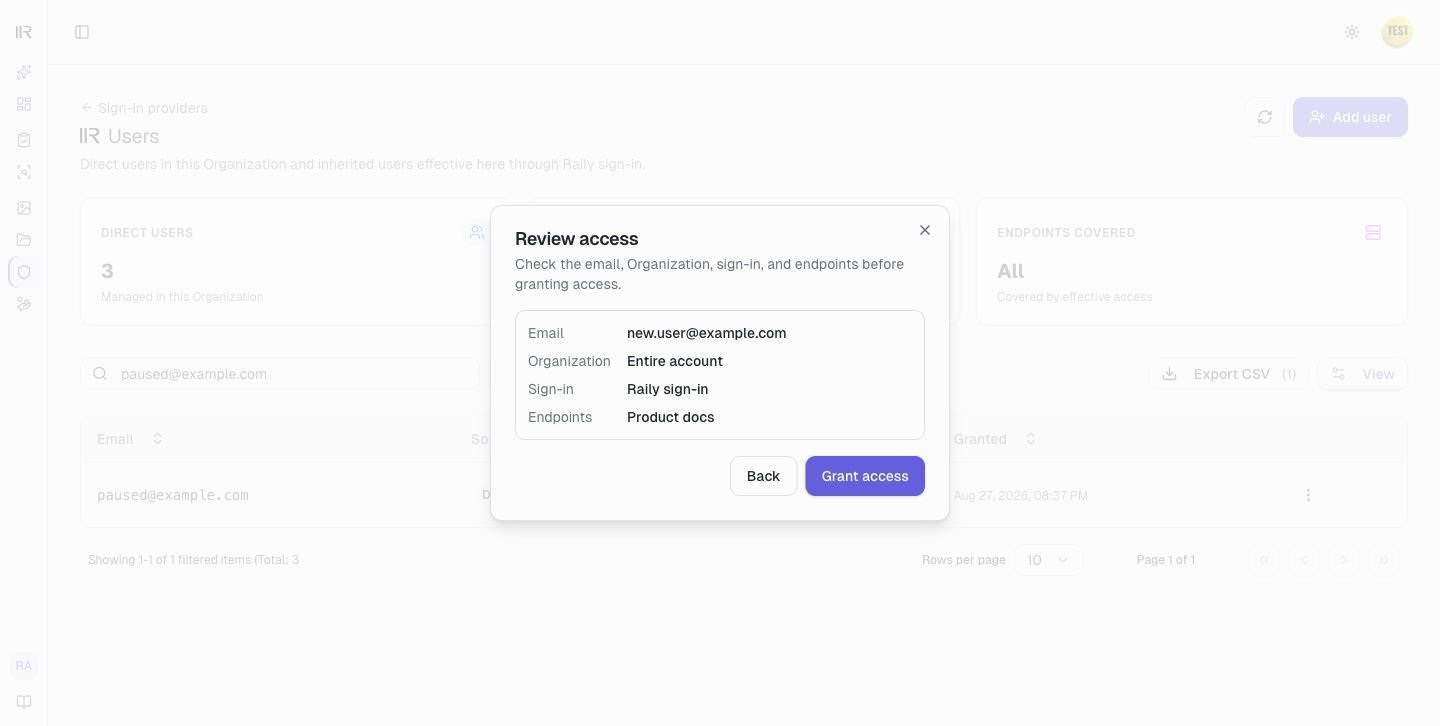 Check the **Organization** carefully. An **All endpoints** grant covers matching endpoints in that Organization and its descendants. A named-endpoint grant stays limited to those endpoints. Neither reaches a parent Organization or a sibling.
Select **Grant access**. Use **Back** if you need to change the email or endpoint scope.
After the grant succeeds, the dialog shows a **Connect link** for each current endpoint in the selected Organization that the direct grant covers.
Check the **Organization** carefully. An **All endpoints** grant covers matching endpoints in that Organization and its descendants. A named-endpoint grant stays limited to those endpoints. Neither reaches a parent Organization or a sibling.
Select **Grant access**. Use **Back** if you need to change the email or endpoint scope.
After the grant succeeds, the dialog shows a **Connect link** for each current endpoint in the selected Organization that the direct grant covers.
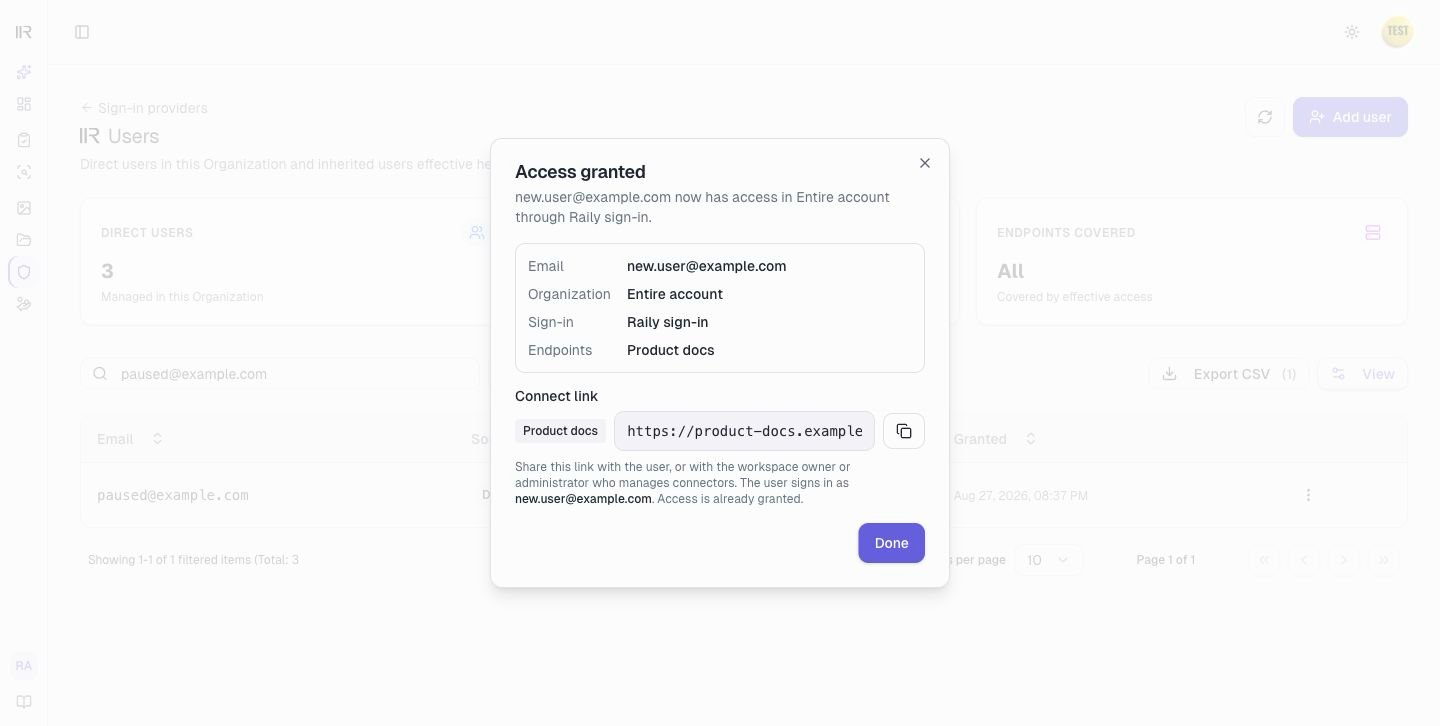 Send the link to the person, or to the workspace owner or administrator who configures connectors. The link is the MCP server URL added to Claude or ChatGPT. The person signs in with the email you granted.
An **All endpoints** grant can also cover matching endpoints in descendant Organizations. Copy those links from the descendant endpoint pages. Future matching endpoints are covered automatically, but each endpoint still has its own connect link that must be added to the AI client or workspace.
Send this to someone connecting from Claude.
Send this to someone connecting from ChatGPT.
## Change someone's access
Open the row menu on a **Direct** user, then select **Manage access**.
Choose the endpoints the person should be able to reach.
Send the link to the person, or to the workspace owner or administrator who configures connectors. The link is the MCP server URL added to Claude or ChatGPT. The person signs in with the email you granted.
An **All endpoints** grant can also cover matching endpoints in descendant Organizations. Copy those links from the descendant endpoint pages. Future matching endpoints are covered automatically, but each endpoint still has its own connect link that must be added to the AI client or workspace.
Send this to someone connecting from Claude.
Send this to someone connecting from ChatGPT.
## Change someone's access
Open the row menu on a **Direct** user, then select **Manage access**.
Choose the endpoints the person should be able to reach.
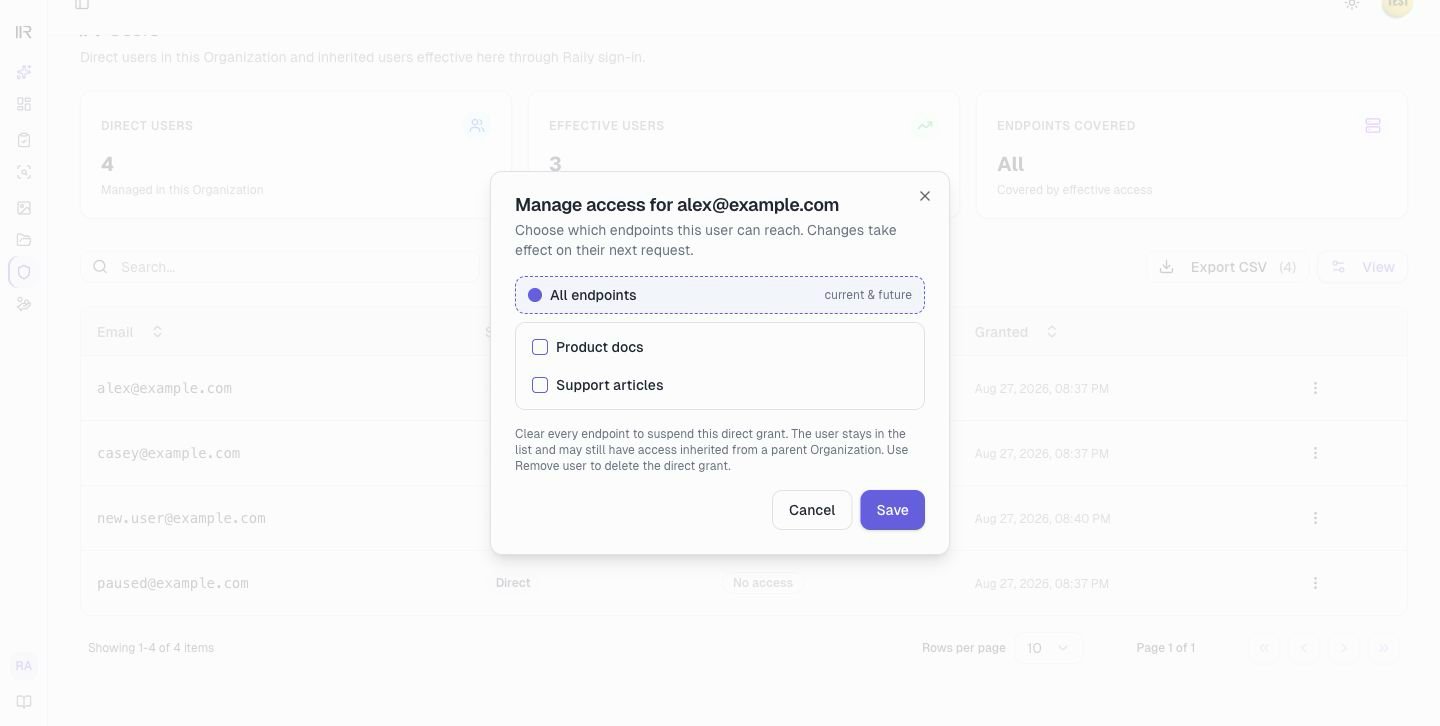 Select **Save**. The change takes effect on the person's next request.
To suspend someone without removing them, clear every endpoint checkbox and save. They stay in your list with **No access** and you can grant endpoints again later. This suspends the direct grant here; it does not override access they inherit from a parent Organization.
## Remove a user
Open the row menu on a **Direct** user, then select **Remove user**.
Check that the dialog names the correct person.
Select **Save**. The change takes effect on the person's next request.
To suspend someone without removing them, clear every endpoint checkbox and save. They stay in your list with **No access** and you can grant endpoints again later. This suspends the direct grant here; it does not override access they inherit from a parent Organization.
## Remove a user
Open the row menu on a **Direct** user, then select **Remove user**.
Check that the dialog names the correct person.
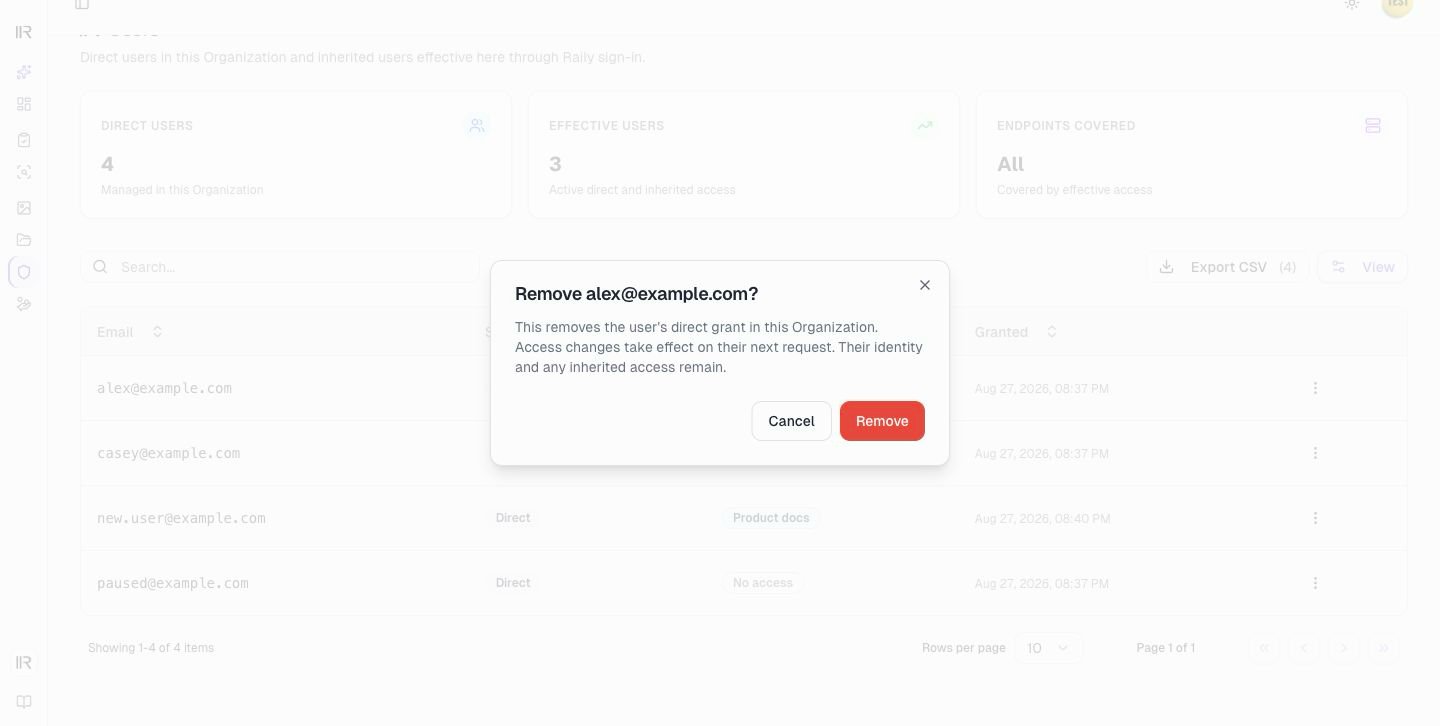 Select **Remove**. The person loses the direct grant on this sign-in on their next request. Their identity and any access inherited from a parent Organization are not affected.
## Troubleshooting
**Add user is locked.**
Your plan does not include user management. Upgrade to add users.
**Add user opens a dialog with no form in it.**
No endpoint in the selected Organization uses this sign-in provider, so there is nothing to grant there. The dialog says so and offers only **Close**. Create an endpoint on this sign-in first, then come back.
**The list says users are synchronized and there is no Add user button.**
This provider is your own identity provider. Add the person there. They appear in Raily after their first successful sign-in.
**Authorization fails after the person signs in.**
Confirm that they used the email address you granted and that their grant covers this endpoint.
**The person connects successfully, but every search is empty.**
Ask a question you know the endpoint's source can answer. If the result is still empty, check the source data, indexing status, saved search configuration, and query.
**The person reaches one endpoint but not another.**
First confirm that the other endpoint uses this sign-in. If it is in the selected Organization, open **Manage access** and add it. If it is in a descendant Organization, choose **All endpoints** here or grant access in the Organization that owns the endpoint.
**Access was granted but the endpoint is still out of reach.**
Check the Organization and scope separately. If the grant is in the wrong branch, grant access in the Organization that owns the endpoint or in one of its ancestors. Then include the endpoint by naming it in its owning Organization, or choose **All endpoints** on a grant in that Organization or an ancestor.
**The row has no menu.**
The access is inherited from a parent Organization. Open the Organization named in the **Source** column and change it there.
Select **Remove**. The person loses the direct grant on this sign-in on their next request. Their identity and any access inherited from a parent Organization are not affected.
## Troubleshooting
**Add user is locked.**
Your plan does not include user management. Upgrade to add users.
**Add user opens a dialog with no form in it.**
No endpoint in the selected Organization uses this sign-in provider, so there is nothing to grant there. The dialog says so and offers only **Close**. Create an endpoint on this sign-in first, then come back.
**The list says users are synchronized and there is no Add user button.**
This provider is your own identity provider. Add the person there. They appear in Raily after their first successful sign-in.
**Authorization fails after the person signs in.**
Confirm that they used the email address you granted and that their grant covers this endpoint.
**The person connects successfully, but every search is empty.**
Ask a question you know the endpoint's source can answer. If the result is still empty, check the source data, indexing status, saved search configuration, and query.
**The person reaches one endpoint but not another.**
First confirm that the other endpoint uses this sign-in. If it is in the selected Organization, open **Manage access** and add it. If it is in a descendant Organization, choose **All endpoints** here or grant access in the Organization that owns the endpoint.
**Access was granted but the endpoint is still out of reach.**
Check the Organization and scope separately. If the grant is in the wrong branch, grant access in the Organization that owns the endpoint or in one of its ancestors. Then include the endpoint by naming it in its owning Organization, or choose **All endpoints** on a grant in that Organization or an ancestor.
**The row has no menu.**
The access is inherited from a parent Organization. Open the Organization named in the **Source** column and change it there.